The founders of a Portuguese food brand had been running their store on Squarespace since 2014. When they decided to redesign and relaunch on a custom platform, they hired a digital agency that spent twelve months on a WordPress and Elementor build. What came back was a backoffice that duplicated content across breakpoints, made bilingual editing painful, and was unusable. They eventually walked away from the redesign altogether, stuck on a Squarespace site they had outgrown and a relaunch that never shipped. Nobody told them the failed redesign was the agency's failure, not their limitation.
That is what living with a broken site feels like from the inside. You adapt to what you have. The failures become normal. The problems are invisible because you are too close to them.
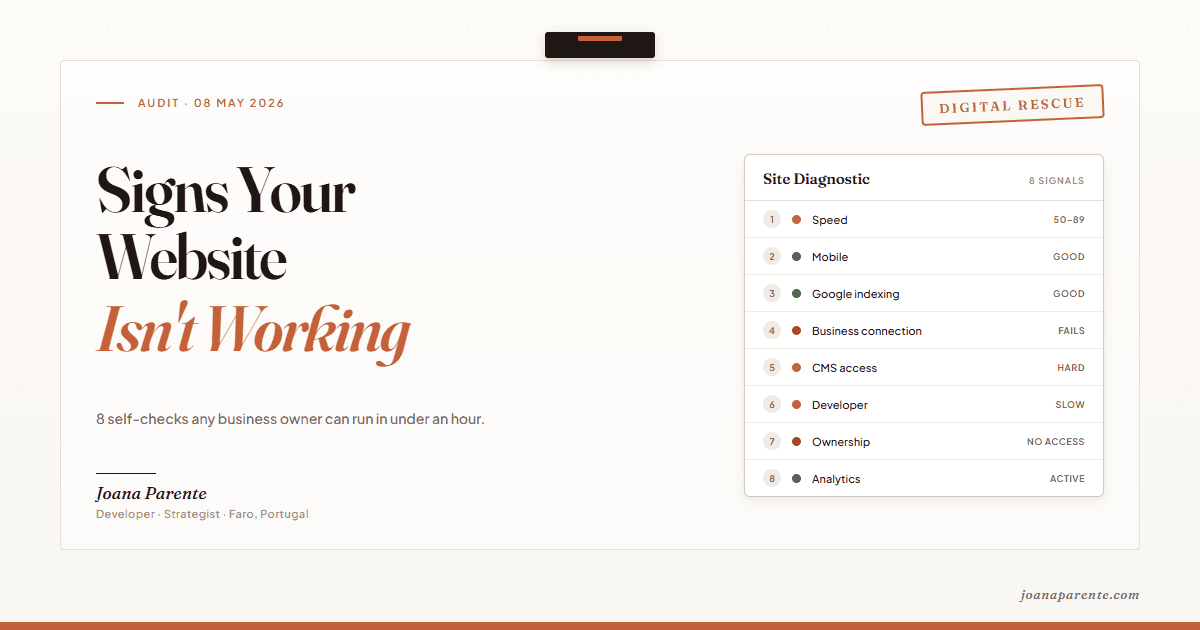
These eight checks take less than an hour. No technical knowledge required.
Why website problems are invisible from the inside
You look at your site with the eyes of someone who built it, or at least knows what should be there. You notice what's working because it's what you use. What isn't working, you rarely think to check.
Most serious site problems aren't created overnight. They grow quietly: a form that accepts submissions but sends no notifications, pages that never reach Google, a CMS so complicated the client stops using it. Nobody told the owner because nobody was looking.
The diagnostic below doesn't require technical knowledge. It requires an hour and access to your own site.
How do I know if my website is too slow?
The 60-second check: Open your site on your phone, on mobile data, not your home WiFi. Count mentally. If it takes more than three seconds for anything to appear on screen, your site is slow.
For a number, go to pagespeed.web.dev, paste your URL, and choose "Mobile." Look at the Performance score.
Green (Google's "Good"): 90 or above.
Yellow (Google's "Needs Improvement"): 50-89. Most business sites land here. Not urgent, but there's work to do.
Red (Google's "Poor"): Below 50. At this level, performance is affecting both your search ranking and how many visitors stay long enough to see what you offer.
For context: Google's research on mobile load times found that the probability a visitor bounces nearly doubles as load time goes from one second to five seconds. Today's Core Web Vitals threshold (the metric Google uses for ranking signals) is 2.5 seconds for the main content to appear on screen (Google calls this "largest contentful paint"), with anything above 4 seconds rated as poor. The "it loads fine on my laptop" test is not a relevant data point. Your developer's MacBook on a fast broadband connection is not your customer's reality.
What's typically fixable: Most slow sites don't need to be rebuilt. Oversized images, render-blocking fonts, JavaScript that shouldn't be there, missing caching. What matters is whether your developer has ever shown you this number.
How do I know if my website works on mobile?
Mobile-first indexing means Google looks at the phone version of your site before the desktop one. If the mobile experience is broken, the whole site is penalised, even if the desktop version looks polished.
The 60-second check: Open the site on your phone. Better still, borrow a phone from someone with an older device. Try to do what a customer would do: tap the contact button, submit a form, read the navigation menu. If anything is hard to read or awkward to tap, your customer has the same problem.
Green: Everything works without friction. Text is readable without zooming. Buttons are easy to tap.
Yellow: It works, but with hesitation. Small buttons, dense text.
Red: Something doesn't work at all, or requires too much effort. A form that doesn't submit, a menu that won't open.
What's typically fixable: Most mobile problems are CSS and layout, not architecture. The harder thing to catch is when a form that looks correct actually fails on certain iOS or Android versions. Testing on your own phone, on mobile data, is the closest you can get to a real customer's experience.
How do I know if Google can find my website?
If your site isn't indexed, none of the other signs matter. Customers can't land on a page Google doesn't know about.
The 60-second check: Open Google and type site:yourdomain.com (replace with your actual domain). What appears are the pages of your site that Google has indexed. If it returns zero results, your site isn't being crawled. If it shows far fewer pages than you've published, you have orphaned or excluded pages.
Green: Result count roughly matches the number of pages you've published.
Yellow: Some pages missing. Could be timing (recently published pages take days to weeks) or a configuration issue.
Red: Zero results, or the site is indexed but appears with errors, duplicate content, or the wrong pages ranking.
What's typically fixable: Indexing problems are almost always configuration, not architecture. A misconfigured robots.txt, missing or broken sitemap, redirects pointing the wrong way, or pages set to noindex by accident. The previous post on this blog covers the nine most common reasons in detail: Why Is My Website Not Showing on Google? 9 Reasons.
How do I know if my website is actually connected to my business?
The owner of a small Algarve hospitality property had a website, a tourism business, and a clear need to take direct bookings. What was missing was the connection: guests arrived at the site but couldn't check availability or reserve directly. To make a reservation, they had to find the property on an OTA. The commission left every month, the contact form looked fine, and nobody had told the owner that gap was the bug.
The 60-second check: Do what a customer would do. Submit a test booking or send a message through the contact form with your own email. Time how long it takes to arrive where it should. If you have a shop, try to buy something. If you have a booking system, check whether availability on the site matches what's in your management system.
Green: Information arrives quickly and in the right place.
Yellow: It arrives, but slowly, or not to the main system.
Red: It doesn't arrive. The site accepts the submission but the business never sees it.
This is the most invisible failure mode in tourism and service businesses. The site looks like it works because it accepts input. The revenue loss happens silently downstream.
Can I update my website without calling the developer?
The 60-second check: Try to publish something new. A news item, a price update, a new photo. Time yourself. If a 50-word change takes more than ten minutes, or if you need to message the developer for something basic, the system wasn't built for you.
Green: Simple changes in under ten minutes, without outside help.
Yellow: You can do it, but it's awkward or confusing.
Red: You can't change anything without the developer.
The food brand's backoffice is the clearest example of this: a system so complicated that the founders eventually stopped trying. The tool was wrong for its purpose, full stop. A well-configured CMS changes this, but it requires rethinking the content structure, not just changing the theme.
When is the developer the problem, not the website?
The 60-second check: Look at the last five message threads with your developer. What was the average response time? Did you need more than one follow-up for a simple fix? Are there open requests that have been sitting for more than a week?
Green: Responses within 24-48 hours. No repeated follow-ups for the same request.
Yellow: Slow, but responds. Occasionally need to ask twice.
Red: A pattern of silence. Responses arrive only after multiple messages. Requests that stay open.
A 48-hour delay during peak season is acceptable. A consistent pattern of needing three messages to get a basic fix done is not a workload problem. It is a relationship problem. The distinction matters because fixing the website won't fix the relationship.
Who actually owns my website?
The 60-second check: Search your email for "domain renewal" or the name of your domain registrar (GoDaddy, Namecheap, Cloudflare). Whose name is on the account? Do the same for your hosting, your CMS, and your code repository.
Green: All accounts are in your name, with credentials you control.
Yellow: Some are in your name, some are in the developer's, but you have access to all of them.
Red: You can't access one or more accounts. The developer holds them.
Four layers matter: domain registrar, hosting, CMS, and code repository. If you can't log into any of them without asking the developer, you don't fully own your site. This is the one signal that doesn't describe a website problem. It describes a relationship problem, and it's worth understanding before you're in a crisis.
Is anyone actually reading my website's data?
The 60-second check: When was the last time you opened Google Analytics or Google Search Console? What did you look at? Did you make any decision based on what you saw?
Green: You open them regularly, you look at the metrics that matter for your business, and sometimes you change something because of what you find there.
Yellow: They're installed, you know they exist, but you rarely open them.
Red: You don't know whether they're installed. Your developer never mentioned them.
At the food brand client, Search Console revealed 4,094 organic clicks on a single recipe and 435 quick-win opportunities sitting unactioned. Nothing had been flagged previously. Not for lack of access to the data. For lack of anyone looking at it.
The data is there. What's usually missing is someone reading it.
What to do if four or more signals are red
Four or more red signals doesn't mean you need a new website. It means you need an audit before deciding anything.
An audit is cheaper than a rebuild, faster than changing developer blindly, and gives you concrete information to decide: repair the current situation, or justify the change.
The audit-first approach is how I work. At the hospitality client, I sat in on the channel manager evaluation meeting before writing a single line of code. I needed to understand what was there, what was missing, and what the system needed to do. Only then did I start building.
If you want to understand what's happening with your site before making any decisions, that's exactly what an audit is for. You can read how the process works here, or get in touch directly. Let's talk.

